How Young Children Learn to Use a Computer Mouse
Most adults think using a computer mouse is intuitive. I understand why. After all, if you’ve been using a computer for twenty or thirty years, moving a cursor and clicking a button feels as natural as picking up a pencil. It’s easy to forget that there was ever a time when those skills had to be learned.
Then come spend a day in an elementary computer lab.
One of the things technology teachers know that most people don’t is that computer mouse skills are not automatic.
I learned this lesson very quickly when I started teaching kindergarten students.
Picture twenty-five excited five-year-olds sitting at computers for one of their first technology classes. The goal sounds simple enough: open a website and complete a learning activity.
What actually happens is chaos.
Within seconds, students have accidentally opened new browser tabs. Some have double-clicked everything in sight. Others are dragging windows across the screen without realizing it. A few have completely lost their cursor and have no idea where it went. Several students are clicking so many times that they have opened dozens of tabs before I can even make it across the room to help.
By the time I reach one student, another is waving both hands in the air because their screen “looks weird.” Across the room, someone else has managed to resize the browser window to half the screen. Another student is clicking furiously because nothing seems to be happening.
And this isn’t because they’re doing anything wrong.
They’re doing exactly what beginners do.
What many adults don’t realize is that using a mouse requires a surprising number of skills working together at the same time. Students must coordinate hand movements while watching a screen. They must understand cause and effect. They must control fine motor movements. They must learn how much pressure to use, how to stop moving while clicking, how to double-click at the correct speed, and how to drag an object while holding a button down.
That’s a lot to ask of a five-year-old who may have spent most of their life using touchscreens.
The truth is that many of our youngest students don’t need more computer time.
They need more opportunities to practice the foundational skills that make successful computer use possible.
Once I understood that, I stopped treating mouse skills as something students would simply “pick up” on their own. Instead, I started looking for ways to break those skills into smaller, manageable pieces that students could practice before sitting down at a computer.
The results completely changed the way I teach mouse skills today.
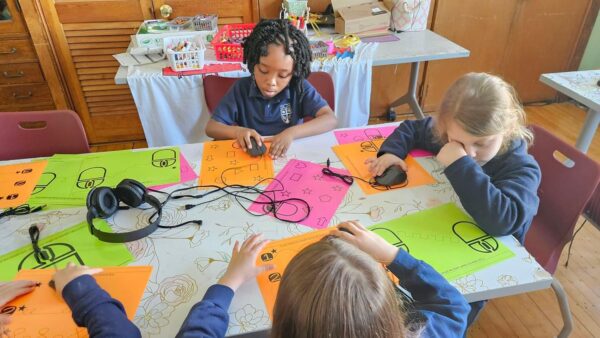
For an adult, mousing feels automatic because these skills have been automated over decades. For a 4-year-old, many are still developing.
Here’s a surprisingly comprehensive list:
Physical Skills
1. Correct Grip
- Knowing where to place the hand
- Resting the palm without squeezing
- Positioning fingers appropriately
- Not lifting the mouse off the surface
2. Fine Motor Control
- Moving fingers independently
- Pressing one button without moving the whole hand
- Releasing pressure appropriately
- Controlling force
3. Wrist Stability
- Stabilizing the wrist while moving
- Avoiding large jerky motions
- Maintaining a comfortable position
4. Bilateral Coordination
- One hand controls the mouse
- Other hand remains still or performs another task
- Coordinating both sides of the body
5. Hand-Eye Coordination
- Looking at the screen
- Moving the hand on the desk
- Understanding that movement in one place affects something in another place
This alone is a major developmental milestone.
Cognitive Skills
6. Cause and Effect Understanding
- “When I move this object, the arrow moves.”
- “When I click, something happens.”
This sounds obvious, but it’s learned.
7. Spatial Mapping
A mouse is an indirect input device.
Children must understand:
- Move hand left → cursor goes left
- Move hand right → cursor goes right
- Move hand slightly → cursor moves slightly
- Move hand farther → cursor moves farther
This is not intuitive for every child.
8. Visual Tracking
- Locate the cursor
- Keep eyes on it
- Follow movement across the screen
- Find it again when lost
Many young students lose the cursor constantly.
9. Attention Control
- Focus on a specific target
- Ignore distractions
- Maintain attention long enough to complete a task
Mouse-Specific Skills
10. Single Click
Children must learn:
- Which button to press
- How hard to press
- Press once
- Release
Many beginners either:
- Hold too long
- Press repeatedly
- Move the mouse while clicking
11. Double Click
This is actually quite difficult.
Requires:
- Two clicks
- Correct speed
- Consistent rhythm
- Minimal mouse movement between clicks
For many kindergarten students, double-clicking is one of the hardest mouse skills.
12. Click and Drag
Requires simultaneous actions:
- Hold button down
- Move mouse
- Keep holding
- Release at the correct location
This combines multiple motor skills at once.
13. Drag and Drop Accuracy
Students must:
- Grab the object
- Maintain control
- Navigate to target
- Release at the correct time
Many children either:
- Let go too early
- Forget to let go
- Miss the target
14. Hovering
- Move cursor onto an object
- Stop moving
- Wait
Adults forget how challenging “hold still” can be.
15. Target Acquisition
Essentially:
“Can you move the cursor to exactly where you want it?”
This involves:
- Accuracy
- Precision
- Speed control
Visual-Perceptual Skills
16. Figure-Ground Perception
Finding:
- The cursor
- A button
- An icon
among many visual elements
17. Directionality
Understanding:
- Up
- Down
- Left
- Right
- Diagonal
18. Position Awareness
Recognizing:
- Above
- Below
- Next to
- Inside
- Outside
These concepts are often still developing at ages 4–5.
Executive Function Skills
19. Following Multi-Step Directions
For example:
- Move cursor to the folder
- Click once
- Move to the button
- Click again
That sequence requires working memory.
20. Error Recovery
When something goes wrong:
- Find the cursor again
- Try again
- Adjust movement
Young children often need explicit instruction in troubleshooting.
After teaching thousands of elementary students, I’ve learned that most mouse struggles aren’t behavior problems, attention problems, or technology problems.
They’re skill gaps.
Students simply haven’t had enough opportunities to develop the foundational abilities that make mouse use feel easy.
The good news is that these skills can be taught and practiced.
That’s why I created my Mouse Skills Printable Activities. Instead of waiting until students are frustrated in front of a computer, these activities give them a chance to practice the underlying movements and concepts in a developmentally appropriate way.
The result? More confidence, less frustration, and a much smoother transition to using computers independently.
If you’re looking for a simple way to introduce mouse skills to preschool, kindergarten, or first grade students, you can check out the resource below.

Pin this post to get back to later:
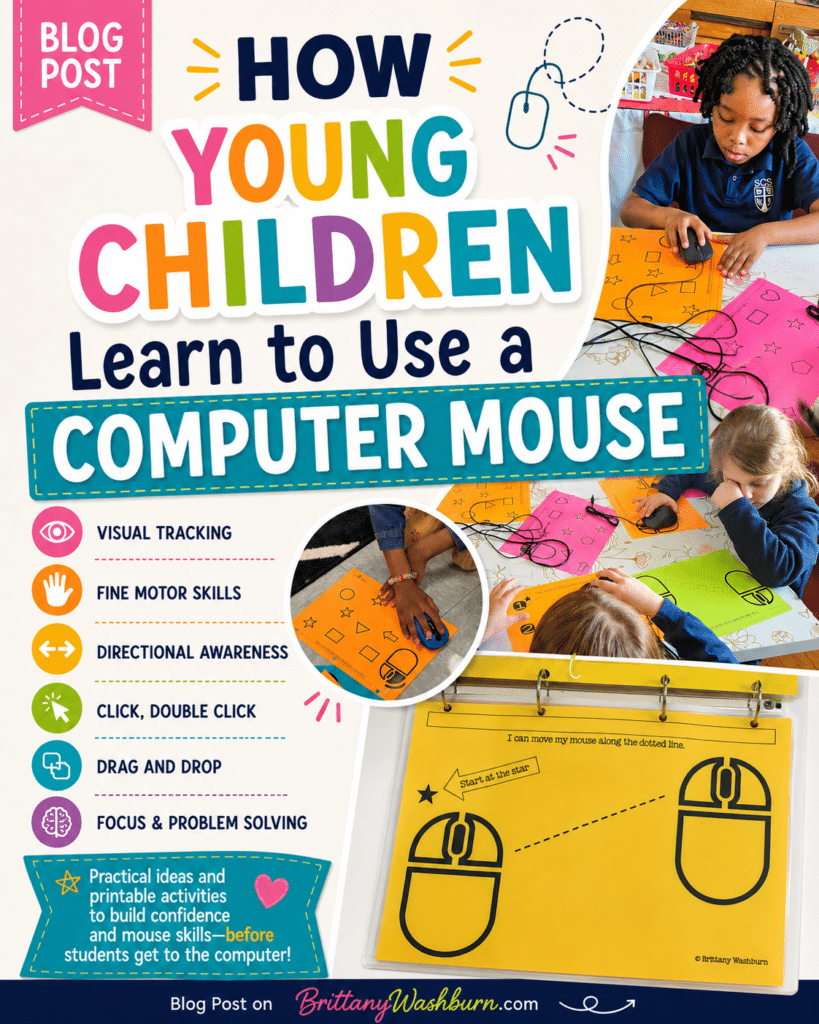
When I shared these mouse skills activities online, the video reached millions of viewers. While many teachers recognized the need immediately, others questioned why students would need mouse skills practice before using a computer.
The reality is that technology teachers see these challenges every day. Young students often struggle with visual tracking, click control, drag-and-drop movements, cursor awareness, and directional skills. These activities were designed to build those foundational skills before students encounter the frustration of using a computer mouse for the first time.
Sometimes the people who work with young learners every day notice challenges that aren’t obvious to everyone else.

When I shared these mouse skills activities online, I discovered that many adults have forgotten how much coordination goes into using a computer mouse.