How to Print Booklets, Posters & More Using a PDF Reader
PDFs are widely used for their compatibility and consistent formatting across different devices, making them ideal for high-quality printing. Moreover, many PDF readers are equipped with a wide arsenal of printing options that will take your printed teaching resources to the next level. Printing booklets, posters, and other materials from PDF files can be a straightforward process when you understand the right tools and techniques. We will guide you through the essential steps and considerations to successfully print your documents, helping you achieve the best possible results for each of your lessons.
The Benefits of Using PDFs to Print
PDFs keep your fonts, images, and formatting locked. They’re compatible across platforms, so whether you’re on a Mac or PC, your document looks just as you intended. Plus, PDFs often come with smaller file sizes without sacrificing quality, making them perfect for sending to print—for when your document needs to be saved, not just shared.
Choosing the Right PDF Reader for Printing
When it comes to PDF readers, you’ve got more options than you think. Adobe Acrobat Reader may be considered the gold standard, giving you features galore, but it also can feel like overkill for basic tasks. PDF Suite, Foxit Reader and Nitro PDF Reader are great alternatives that have excellent functionality.
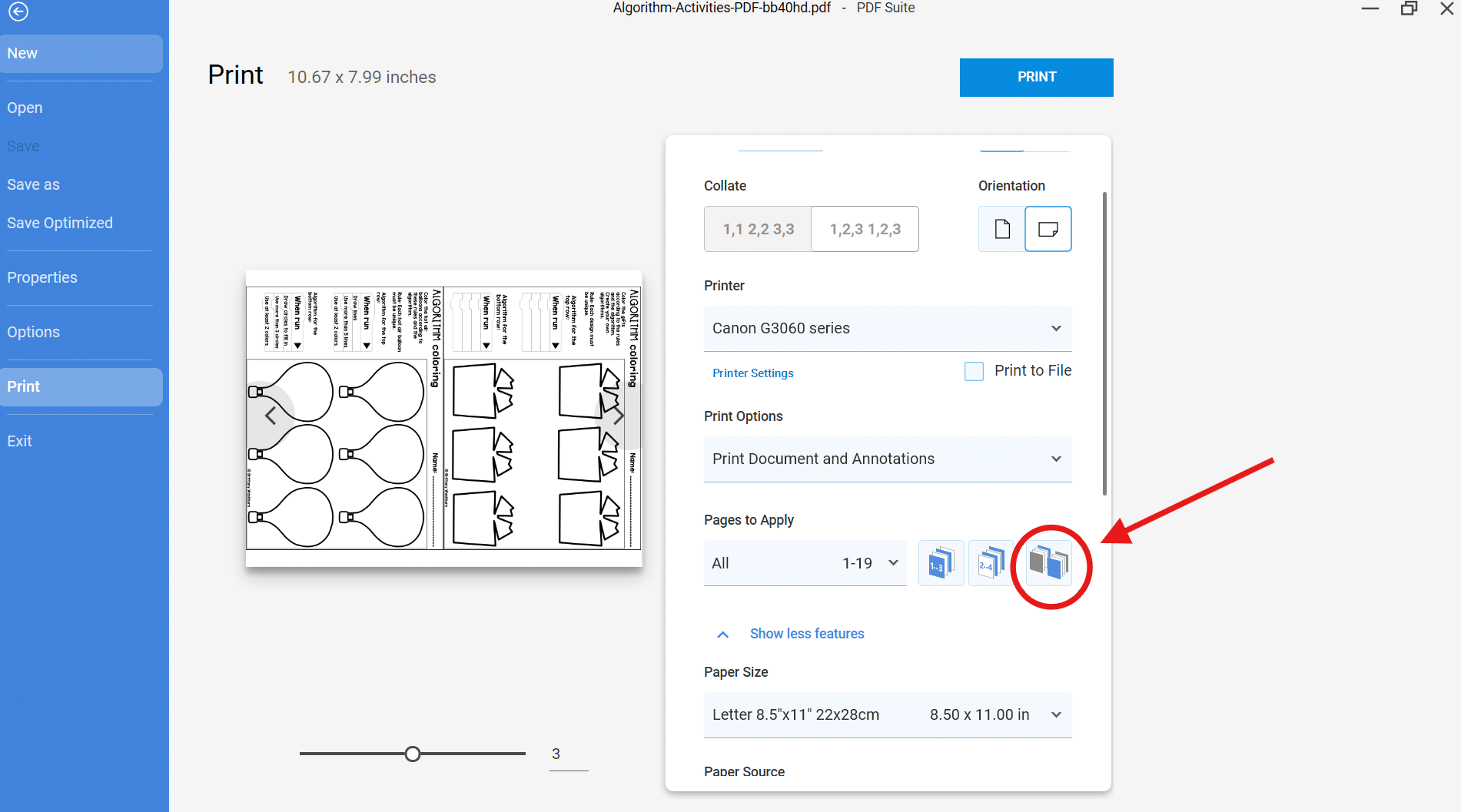
Just press print and have a look around, hovering over the icons to find what capabilities are at your fingertips.
If you don’t find what you need, you can always remove the program and try something else.
What’s so great about booklets and posters?
Presentation is key!
Booklets are great for a packet of related materials you will be working through over many days. The size is more manageable and everything stays together without the need for staples.
Posters are a great way to decorate your classroom with informative, inspiring material.
Step-by-Step Guide to Printing Booklets
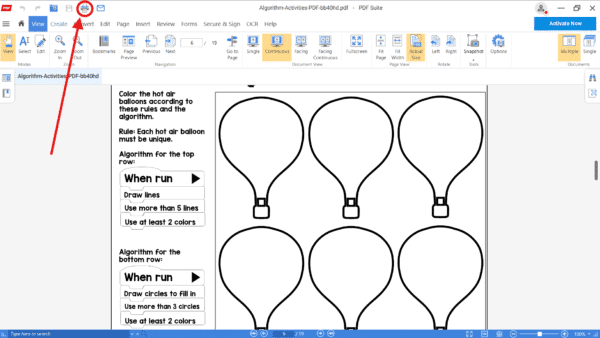
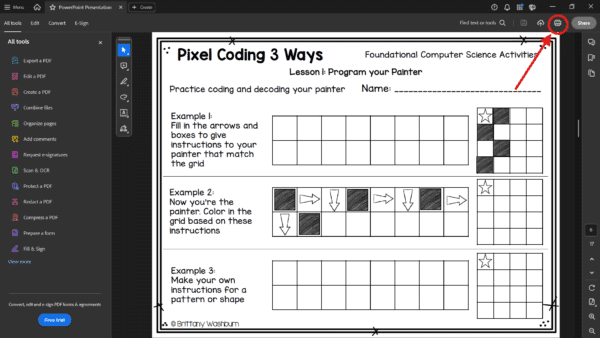
As always, finding your print icon to open the configuration options is your first step.
Next, find the booklet setting. While a booklet format can be created in the original document if your brain can do enough gymnastics to plan it out, this little button can make any document into a booklet instantly, just like magic.
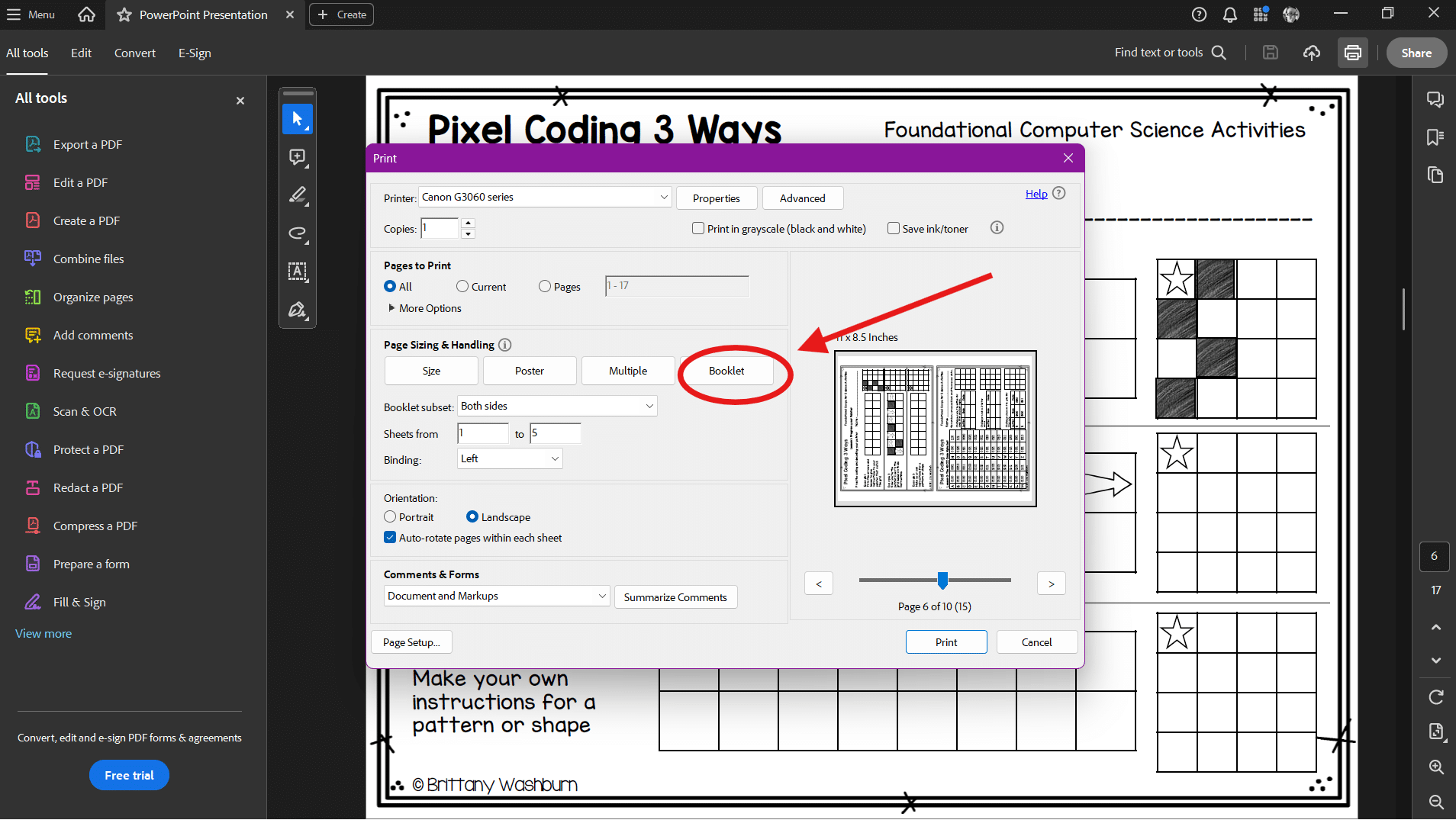
Configuring Print Layout
Now further configure your print layout. In your PDF reader, select the option to print on both sides (duplex printing). It might just be the case that your printer secretly prefers one-sided prints, so double-check that you’ve clicked the right buttons.
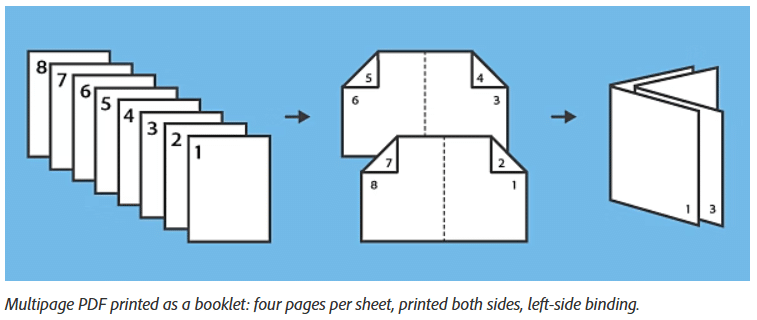
Select your preferred orientation and binding/folding point.
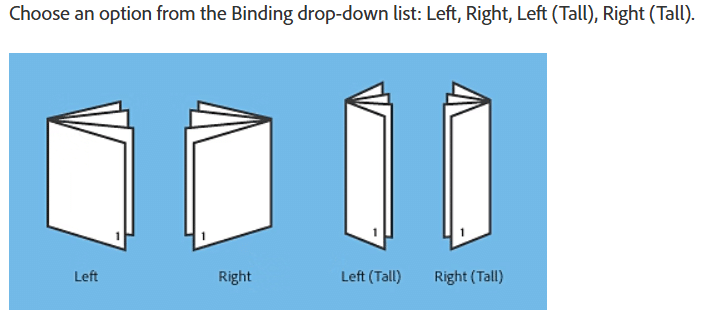
Pro Tip
Make sure to click the checkbox to auto rotate pages, so you don’t end up with a mess of too-tiny pages swimming in an ocean of white space. If this option isn’t available, make sure the orientation is set to “Portrait” for most booklets.


Don’t forget to set the paper size to match your document too!
Tips for Poster Printing
Printing your own posters can not only be a more cost effective solution, it can be the best way to get the information you really want in front of your students.
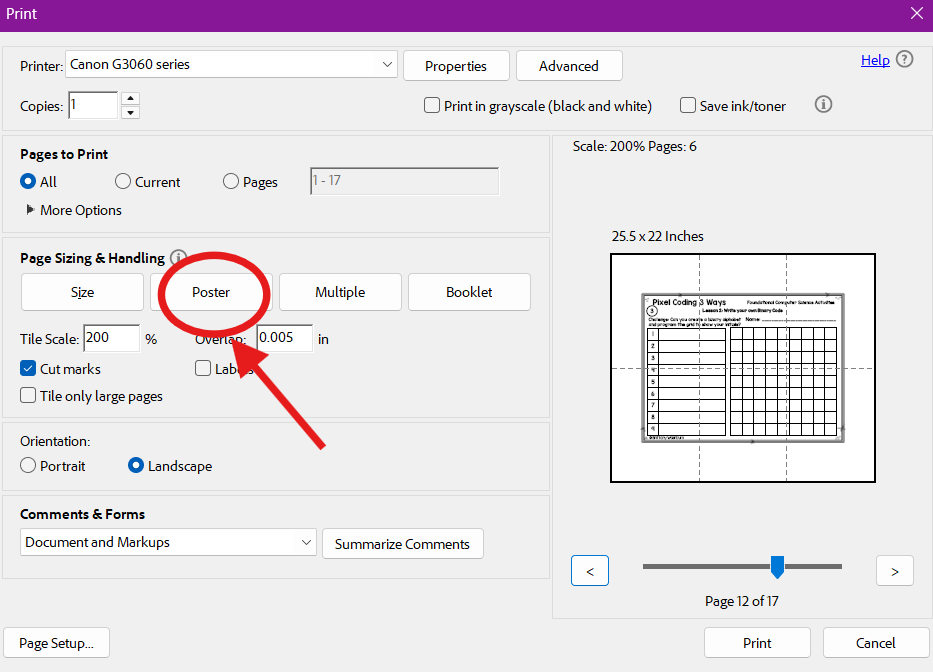
Choosing Materials for Posters
Selecting the right material for your poster is crucial. You can go for standard paper, but if you want your masterpiece to stand out, consider using heavier cardstock or canvas.
Color Management for High-Quality Prints
Let’s talk color management—because no one wants their vibrant reds to turn into sad pinks. Make sure your monitor is calibrated, and use CMYK color mode for printing, as it’s the gold standard for printers. If you want to show off your masterpiece without color mishaps, consider printing a small test and place it in your intended space first to ensure everything pops just right. After all, something may not appear as brilliant form across the room as it does from just a few inches away.
Finishing Touches: Lamination
Lamination adds durability—perfect for those little hasty hands you are surrounded by. In addition, if you want to hang it up outside, you will definitely need something waterproof.
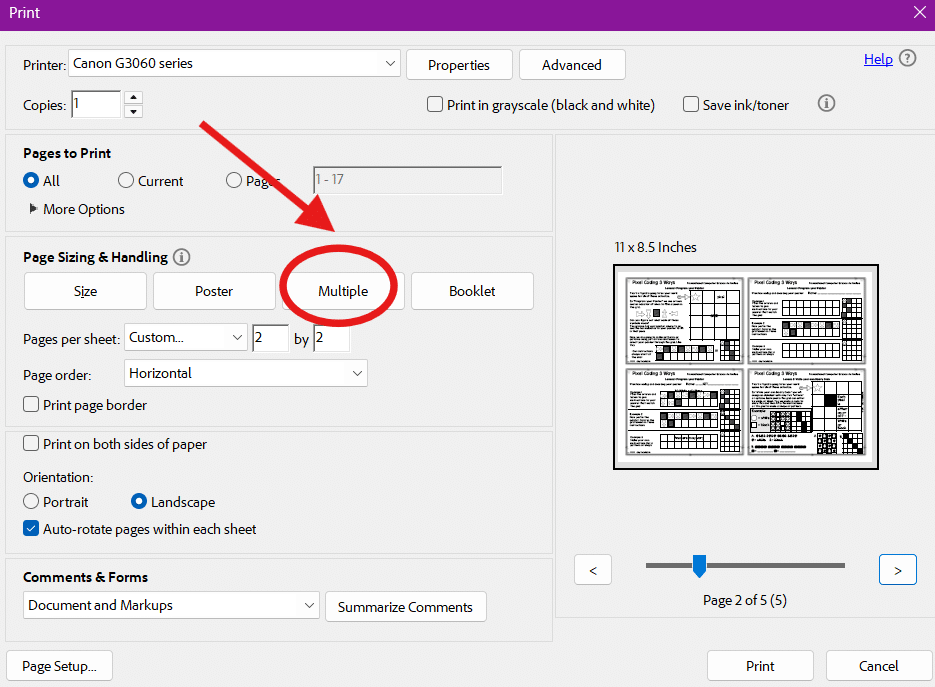
Printing Multiple Pages Per Sheet
Printing multiple pages to a sheet is a great way to create flash cards, make reference images fit on one convenient reminder sheet, and more. Don’t work around your printer’s pre-sets, make print sizes work for you.
Printing with Annotations
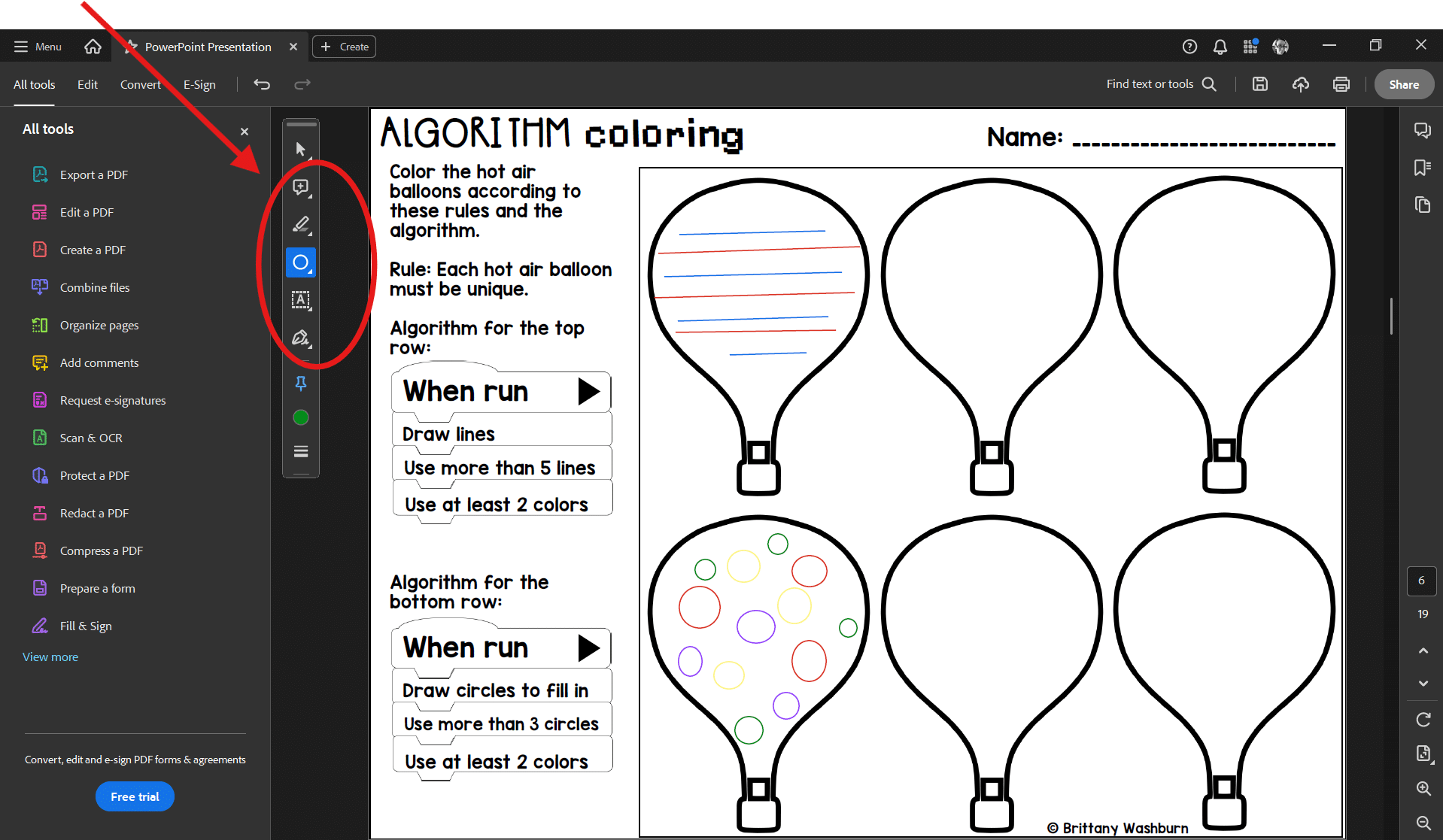
Printing with annotations is extremely useful in the classroom. Students can make annotations and then print with those annotations as a way to turn in their work digitally. No more translating your worksheets into an online quiz format and NO more lost papers! It is also a great way for teachers to make notes or provide an exemplar to post along with assignment instructions, or leave up on the board for review while students are working.
First, annotate.
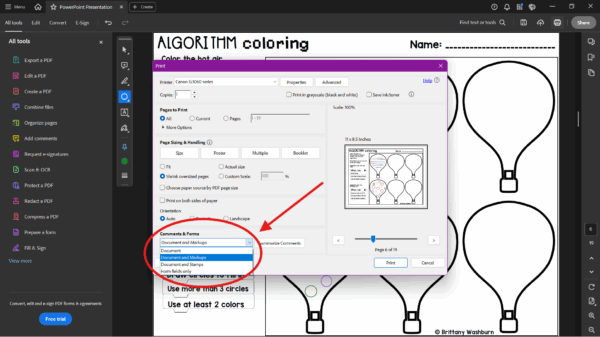
Now once you click print, make sure to find and select the option to print with annotations.
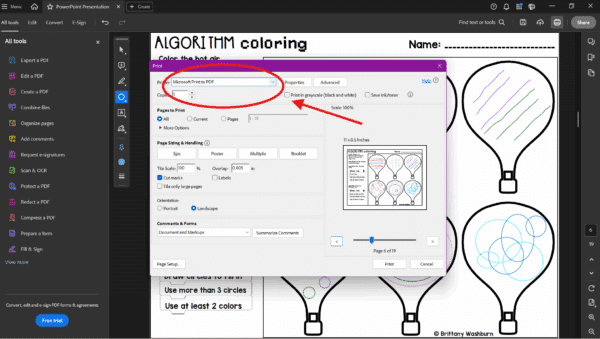
Then decide if you want to print to a PDF to create an annotated digital product or print on paper with your work overlayed.
Troubleshooting Common Printing Issues
When printing in a new, adventurous format it is often wise to print just one or two set of pages to make sure everything is coming out as intended, before wasting the recycling plant’s time on re-pulping and re-bleaching your unusable copies.
Print Quality Problems
If your prints are coming out looking more abstract than you intended, check your ink levels first. Low ink can cause streaks, blotches, and just plain sadness. Next, clean the print heads—usually, a quick option in your printer’s settings.
Alignment and Cropping Issues
Make sure your document is set up correctly before printing. Check the margins and ensure they’re aligned properly. If your poster looks like it’s on a diet (cropped too tightly), adjust the print settings to fit your paper size, and you’ll be golden!
Another Issue?
Check out How to Troubleshoot Printing from a PDF.
Preparing Your Document for PDF
If your desired resource isn’t yet in a PDF format, here are some tips to get it converted just the way you want it. We can help you Create and Save a PDF from Google Slides or PowerPoint specifically, put these general guidelines hold regardless.
Setting Up the Page Size and Margins
First things first: set your page size to match the print dimensions. Whether you’re going for a standard A4 or a snazzy custom size, make sure it aligns with your printer’s capabilities.
Choosing the Right Resolution
For sharp prints, aim for at least 300 DPI (dots per inch). Lower resolutions might save you space, but they can also lead to fuzzy images.
Converting to PDF
Once your document is primed and ready, it’s time to convert it to PDF without losing any of that precious formatting. Use trusted software like Microsoft Word’s built-in PDF export or Adobe’s “Save As” feature. Always double-check the converted file before hitting print—you want all your hard work to shine, not get lost in translation.
Happy Printing!
Printing booklets, posters, and other materials using a PDF reader can be an efficient and rewarding process when you have the right tools and knowledge at your disposal. By following these guidelines, you can ensure that your printed materials turn out as intended, becoming the perfect canvas to showcase the creativity and proficiency of both you and your students.