
✅ Shop with Confidence
- 🔒 Secure Checkout – Your payment is safe and protected.
- ⭐ Quality Guaranteed – Store credit refunds if something isn’t right.
- 🎉 Earn Rewards – Get points for every dollar spent & redeem as store credit!
👉 Add to Cart and start using this resource today
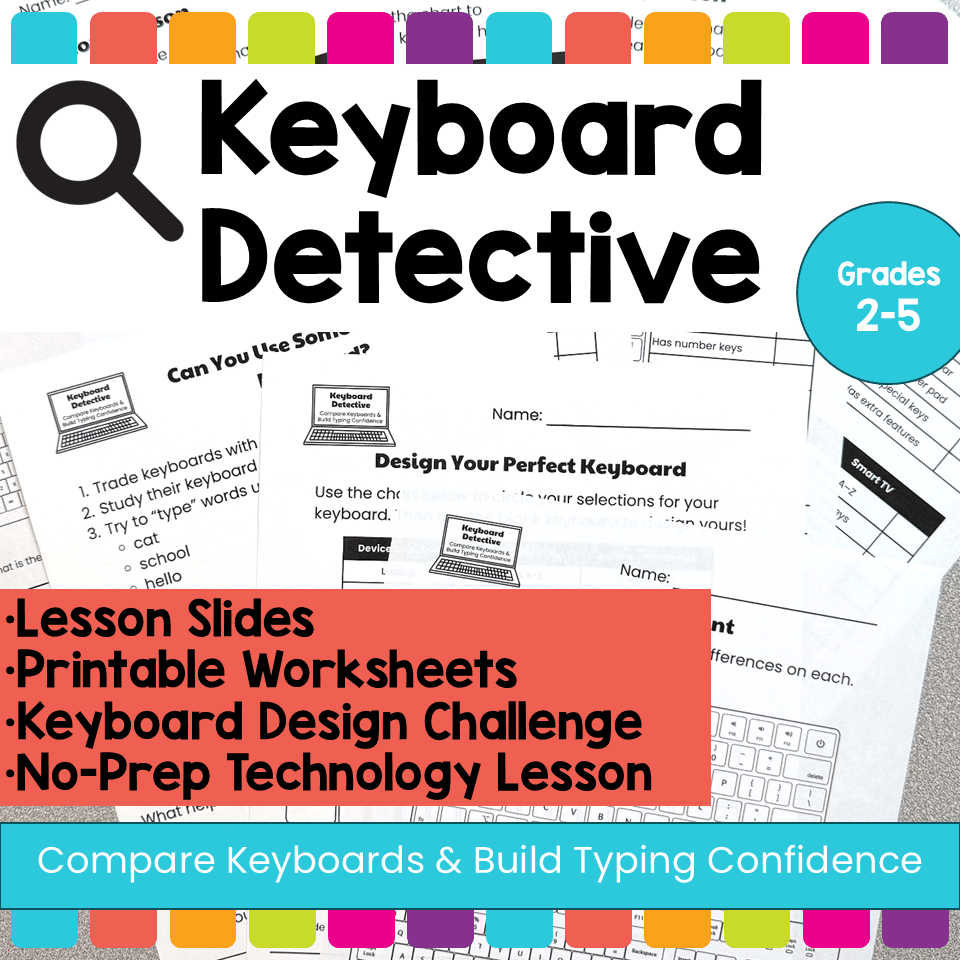
Keyboard Activities QWERTY Layout & Typing Skills
$4.00
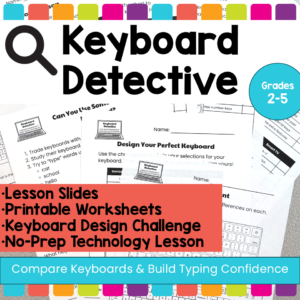
Help students build keyboard confidence with these no-prep keyboard activities that teach them to compare different keyboards, recognize the QWERTY layout, and understand how typing skills transfer across devices.
In this elementary technology lesson, students become Keyboard Detectives as they examine different types of keyboards, look for similarities and differences, and learn that keyboards may look different across laptops, desktops, Chromebooks, iPads, phones, and Smart TVs, but the important parts often stay in familiar places.
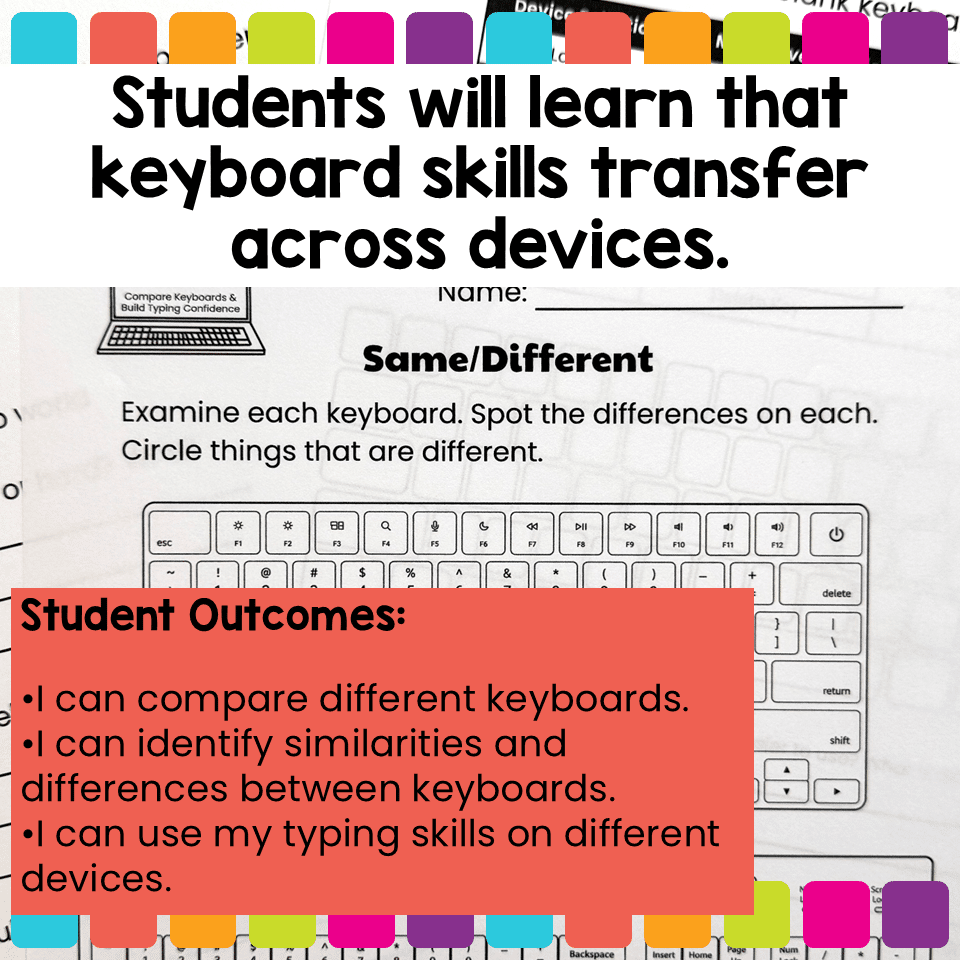
This resource is perfect for helping students understand that they do not have to relearn typing every time they use a new device. The lesson focuses on comparing keyboards, identifying key features, and building confidence with unfamiliar keyboard designs. The included teacher lesson plan is designed for 2nd–5th grade and includes student goals such as comparing keyboards, identifying similarities and differences, and using typing skills across devices.
Keyboard Activities QWERTY Layout & Typing Skills
$4.00
Description
Help students build keyboard confidence with these no-prep keyboard activities that teach them to compare different keyboards, recognize the QWERTY layout, and understand how typing skills transfer across devices.
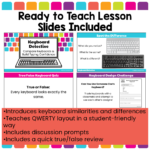
In this elementary technology lesson, students become Keyboard Detectives as they examine different types of keyboards, look for similarities and differences, and learn that keyboards may look different across laptops, desktops, Chromebooks, iPads, phones, and Smart TVs, but the important parts often stay in familiar places.
This resource is perfect for helping students understand that they do not have to relearn typing every time they use a new device. The lesson focuses on comparing keyboards, identifying key features, and building confidence with unfamiliar keyboard designs. The included teacher lesson plan is designed for 2nd–5th grade and includes student goals such as comparing keyboards, identifying similarities and differences, and using typing skills across devices.
What Students Will Learn
Students will learn that:
- Keyboards can look different across devices
- The QWERTY layout stays mostly the same
- Typing skills can transfer from one device to another
- Keyboard designs and features can vary
- Different keyboards may include different buttons, tools, and layouts
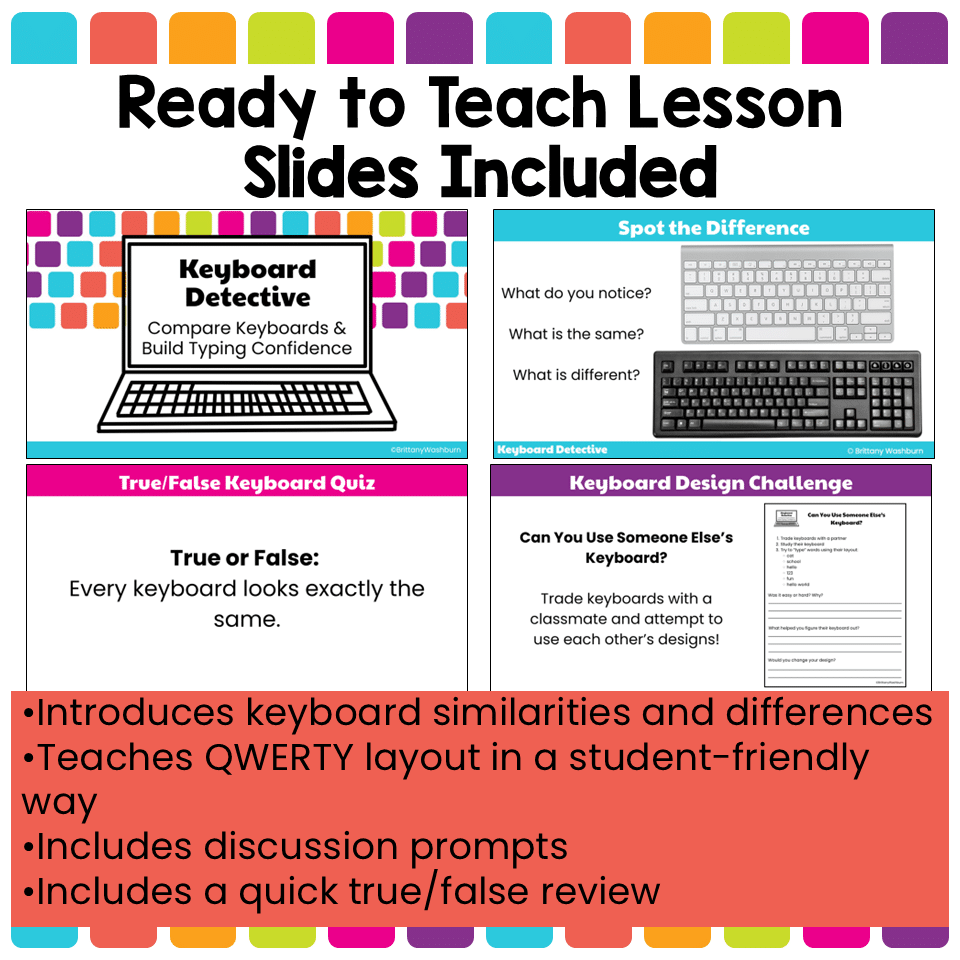
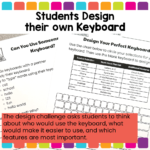
The presentation introduces these concepts through student-friendly slides, keyboard comparison prompts, QWERTY fun facts, true/false review questions, and a keyboard design challenge.
What’s Included
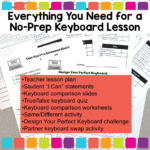
This resource includes:
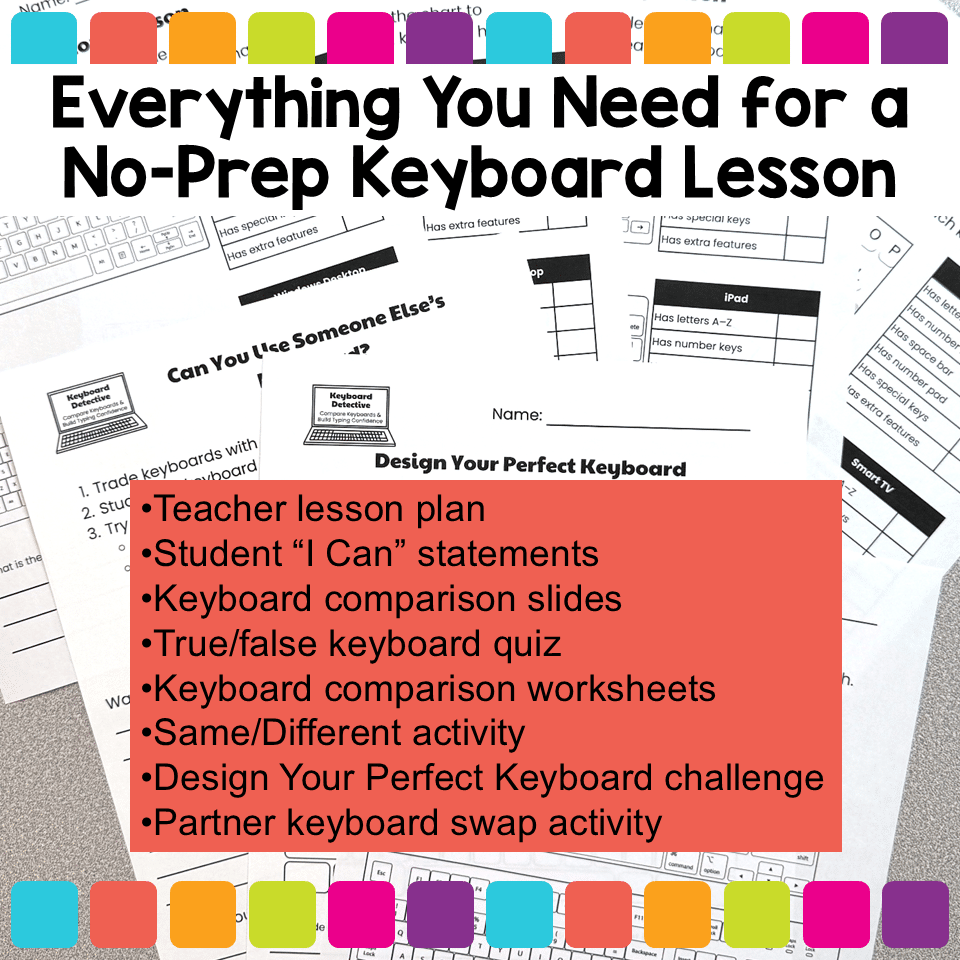
- Teacher lesson plan
- Student “I Can” statements
- Keyboard comparison presentation slides
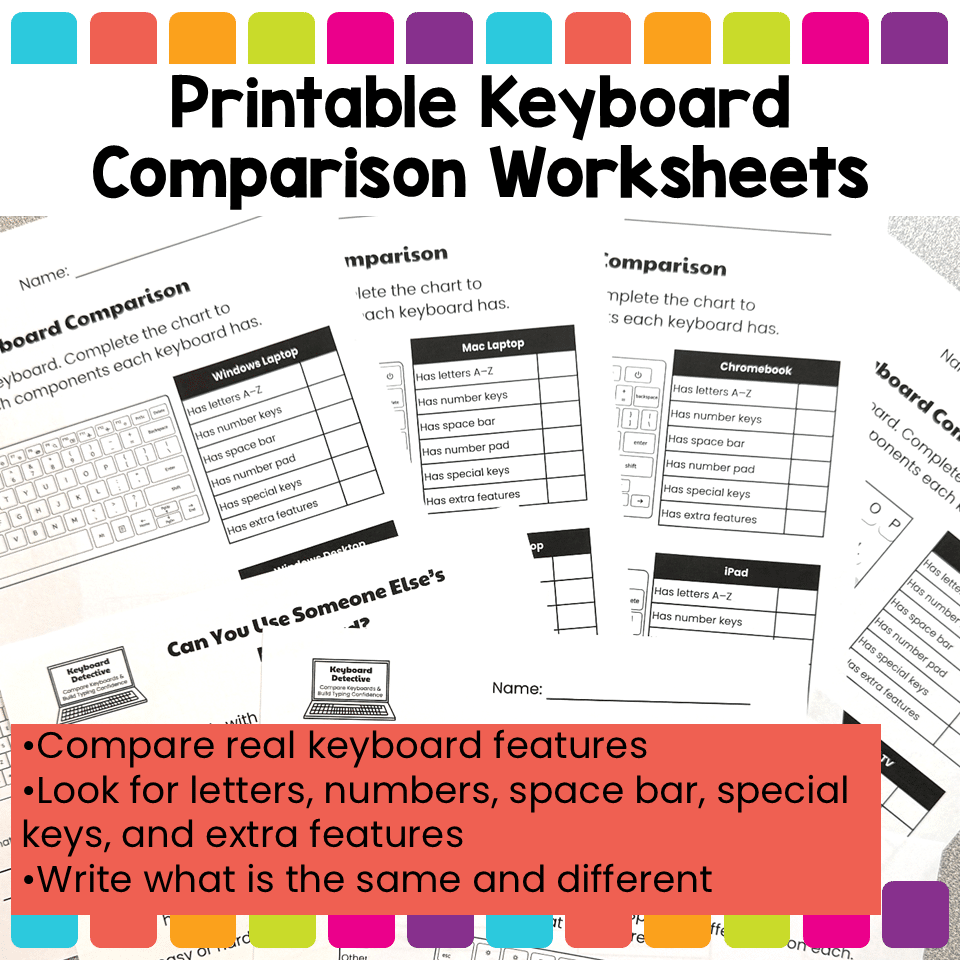
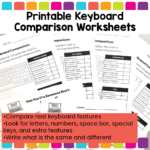
- Keyboard comparison worksheets
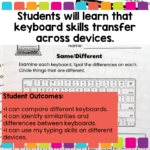
- Same/Different keyboard activity
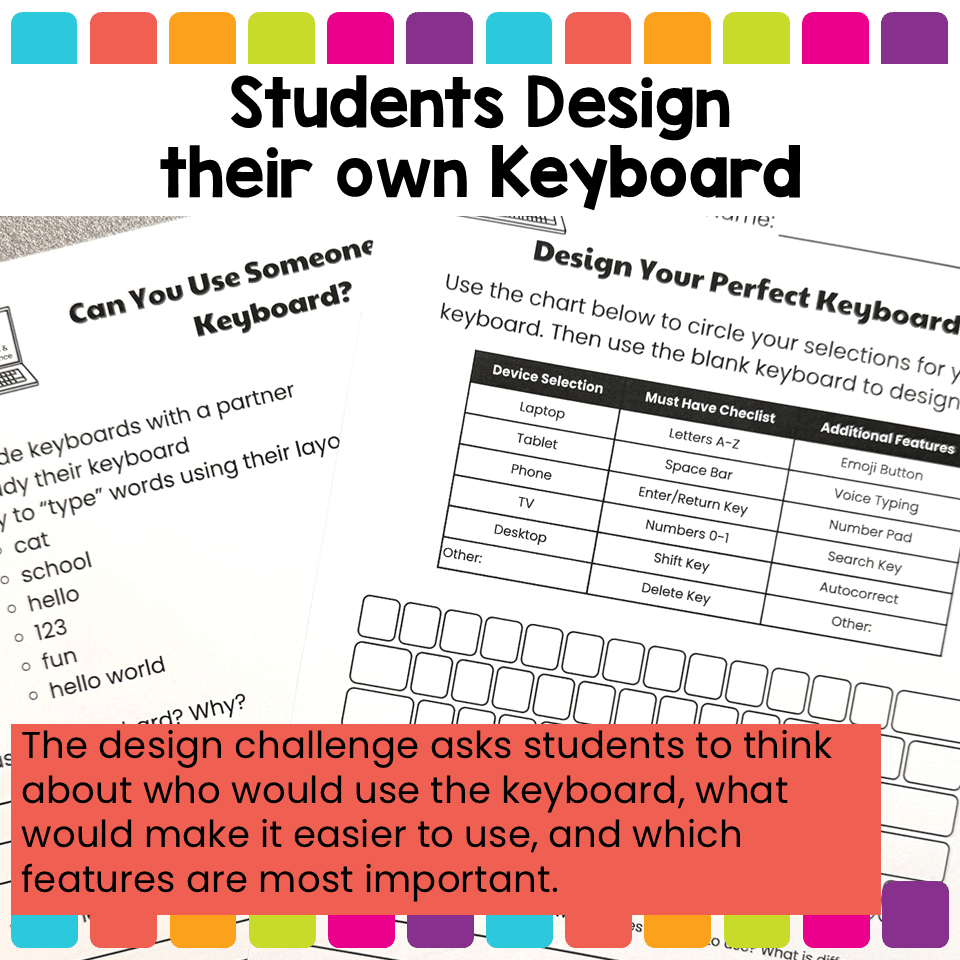
- Design Your Perfect Keyboard worksheet
- Partner keyboard swap activity
- True/false keyboard quiz slides
- Printable student pages
Keyboard Types Included
Students compare and analyze keyboards for:
- Windows laptop
- Windows desktop
- Mac laptop
- Mac desktop
- Chromebook
- iPad
- Smart phone
- Smart TV
The printable worksheets ask students to examine whether each keyboard has letters A–Z, number keys, a space bar, a number pad, special keys, and extra features.
Perfect For
Use this resource for:
- Elementary computer lab lessons
- Keyboarding introduction
- Typing skills practice
- Computer basics
- Digital literacy lessons
- Chromebook practice
- Technology class
- STEM class
- Media center lessons
- Sub plans
- Early finisher activities
- Device introduction lessons
Why Teachers Love This Lesson
Students often get stuck when a keyboard looks different from the one they are used to. This lesson helps them slow down, observe carefully, and realize that their keyboarding skills can still help them on a new device.
Instead of only memorizing one keyboard, students learn to become more flexible and confident technology users.
Suggested Grade Levels
Best for 2nd, 3rd, 4th, and 5th grade technology classes.
Younger students may complete the activities with more teacher support, while older elementary students can complete the comparison and design challenge more independently.
Teacher Note
This is a great lesson to use before beginning a keyboarding unit, when introducing new devices, or when students are transitioning between Chromebooks, desktops, laptops, tablets, or other classroom technology.
Additional information
| Resource Type | Lesson/Unit |
|---|
You must be logged in to post a review.
Related Products
-

Full Year Timely Tech All in One
Original price was: $198.00.$158.40Current price is: $158.40. -

5th Grade ELA Standards Digital Resource Library BUNDLE
Original price was: $27.20.$24.48Current price is: $24.48. -
5th Grade Language Standards Digital Resource Library
Original price was: $16.00.$14.40Current price is: $14.40. -
5th Grade Reading Standards Digital Resource Library
Original price was: $16.00.$12.80Current price is: $12.80.



You didn’t become a tech teacher to spend your weekends building lessons from scratch. I’m Brittany, a technology curriculum specialist with 1,000+ ISTE-aligned resources designed specifically for K–8 computer lab teachers.
My ready-made digital and printable resources cover everything from digital citizenship and coding fundamentals to multimedia creation and computer essentials, so your planning is handled and your students stay engaged.
Every resource is built to align with ISTE Standards, save you time, and actually work in a computer lab setting, because I’ve taught in one myself.
Browse my bestsellers, or explore by grade level or topic to find exactly what you need.
Reviews
There are no reviews yet.