Teaching Students How to Log In
Teaching students how to navigate online platforms is crucial. However, they often need to log into these platforms to access their educational resources. Especially for younger students, logging in can be a hurdle in and of itself! For elementary teachers, guiding young learners through the process of logging in can lay the groundwork for their technology skills and independence. With a focus on clarity and encouragement, we will provide you with effective strategies to teach your students how to log in successfully to various online tools… without taking up the whole class period!
Is Logging In Really That Big a Deal for Students?
Yes! Our Facebook Community reported spending the first 1-3 lessons on logging in.
We have these Tips and Strategies for Teaching Young Students to Log In to Computers, as well as the guide you are currently reading to make sure you don’t get stuck in login limbo.
Understanding the Basics of Login Credentials
Passwords
Before diving into the actual login process, it is essential to first explain what login credentials are. Introduce students to the concept of usernames and passwords. Use simple language and relatable examples. For instance, compare a username to their own name—something unique to them. Explain that passwords are a special secret that helps keep their information safe, similar to how a key works for a locked door.
You can also Teach Your Kids About Passwords with resources like Digital Breakout Internet Safety: Passwords.
Keyboarding
Second, make sure you are accounting for students keyboarding skills – or lack thereof. The Secret to Raising Tech-Savvy Students is to Start with Keyboarding, and students can begin familiarizing themselves with these skills even with simple offline activities such as our POP It Keyboard Station Activities.
Preparing for the Lesson
- Choose a Platform: Decide which online platform your students will begin logging into, whether it’s an educational website or a classroom management system. Ensure that the platform is suitable for their age and abilities.
- Consider choosing a platform that has simplified login options. For example, Clever has a badge scan feature you can set up. Code.org accounts have an option where students only have to type in their class code, then they can select their name from their list of classmates and have a “picture password”.
- Set Up a Demo Account: If possible, create a demo account with a short, easy username and password where students can practice logging in as a warm-up.
- Create Handouts: Prepare handouts that include visual aids showing the login page, where to enter their username and password, and what to do if they forget their credentials. Visual tools will help reinforce their learning.
Step-by-Step Instruction
Once students are familiar with the basic concepts, guide them through the actual login process with a step-by-step explanation:
- Open the Website: Teach students how to use a web browser, emphasizing how to type in the website address correctly.
- ***Pro Tip*** You may be able to use screen monitoring technology such as GoGuardian to push websites directly out to students screens, skipping this step for now so you can focus on learning one thing at a time.
- Locate the Login Section: Highlight where to find the login section on the page. Pointing out the login button can simplify the process for young learners.
- Entering Username and Password: Demonstrate how to enter their username and password correctly. Emphasize the importance of typing accurately and checking for common mistakes, such as letter case or accidental spaces.
- Clicking the Login Button: After entering their credentials, show them how to click the login button. You can encourage them to wait patiently for the page to load.
- Troubleshooting: Prepare students for potential issues. What should they do if they forget their password? How can they ask for help? Teach them to raise their hands or signal for assistance.
Encouragement and Patience
Learning to log in can be a truly challenging task for young students. Be patient and offer plenty of encouragement. Praise their efforts, and provide support when they encounter difficulties. Recognizing small successes will help build their confidence, as will continued support during those first few times beyond the introductory lesson.
Additionally, consider incorporating role-play activities where students can practice with a partner. This interactive approach can help solidify their understanding and make the learning experience enjoyable!
Brittany’s Own Log-In Resources
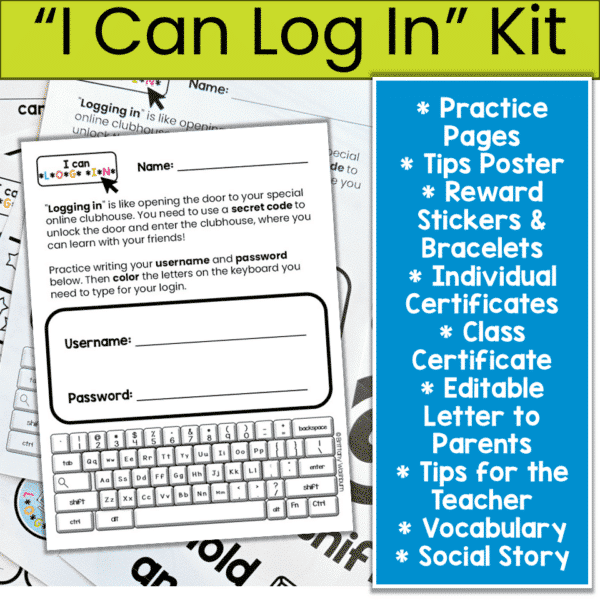
I Can Log In Kit
Unlock the potential of your young students with the “I Can Log In Kit”! Designed specifically for elementary teachers and parents, this kit provides all the tools and resources needed to help children master the essential skill of logging into technology accounts. Say goodbye to log in struggles and hello to confident, tech-savvy students!
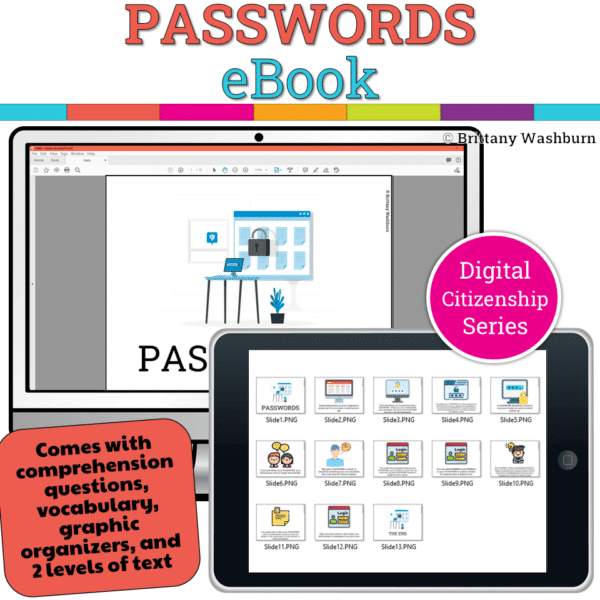
Passwords eBook
Introduce a lesson on Digital Citizenship with this eBook that goes over Passwords. In this booklet students learn about what passwords are and how to make a strong password.
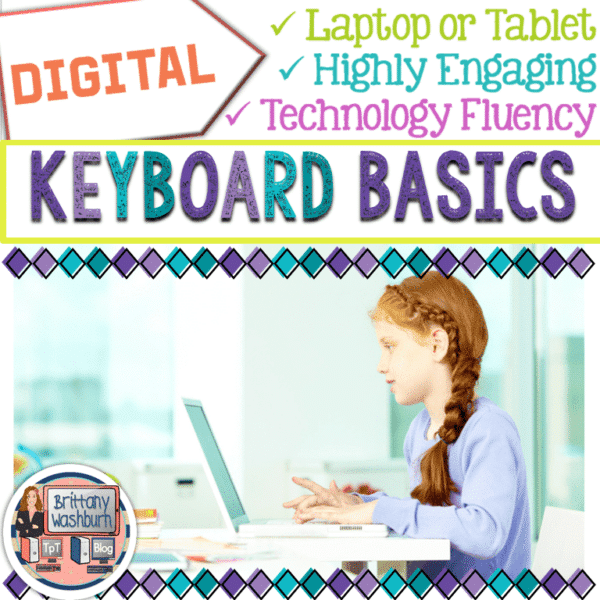
Keyboard Basics Digital Activities
Keyboard basics for the beginner keyboarder. In 12 activity slides, students will learn where the letters and numbers are on the keyboard and which fingers to use for which letters on the keyboard. All color coded to help memorization and visualization. The best part is that these activities are paperless. They are made for Google Drive and can also be use with Microsoft OneDrive (directions in file). Any device that can access Google Slides can be used to complete these digital interactive activities.
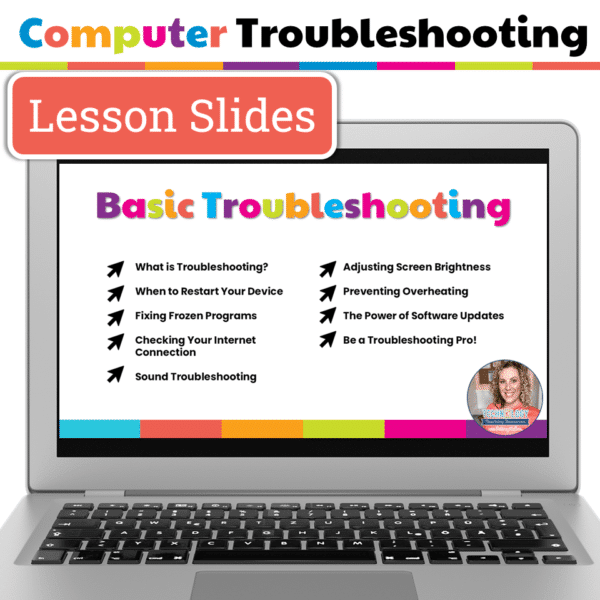
Technology Troubleshooting Unit Kit
Struggling with constant “It’s not working!” interruptions during your tech time? Tired of students relying on you for every small tech issue? This Technology Troubleshooting Unit Kit helps students build independence, problem-solving skills, and confidence when using technology so they can start solving simple issues on their own.
Reflection and Review
After the lesson, take some time to reflect on what went well and what could be improved. Assess how much more comfortable your students feel with the process. Expect to revisit the topic when using a new platform and be ready to reinforce their skills, ensuring they feel more confident every time.
By effectively teaching logging in procedures, you empower your students with essential skills for their academic journey. As they gain confidence in navigating technology, they will be better equipped for future challenges both in and out of the classroom.