How to Save Google Slides as a PDF (Plus Notes and Handouts)
To save Google Slides as a PDF, open your presentation and click File > Download > PDF Document (.pdf). The PDF downloads to your computer with every slide on its own page. That’s it for most jobs, but teachers often need a little more: speaker notes, handouts, or just one slide. Here’s how to do each.

Save Google Slides as a PDF (3 steps)
- Open the presentation in Google Slides.
- Click File, then Download.
- Choose PDF Document (.pdf). The file saves to your Downloads folder.

Links in your slides stay clickable in the PDF. Animations, transitions, videos and GIFs don’t carry over, since a PDF is a still page.
Save Google Slides as a PDF with speaker notes
- Click File > Print preview.
- In the toolbar, choose 1 slide with notes.
- Click Download as PDF.
This is handy for sub plans: the sub gets your slides and your script in one file.
Make handouts (several slides per page)
In File > Print preview, choose Handout and pick 2, 3, 4, 6 or 9 slides per page. Then click Download as PDF. Three per page leaves lines for student notes.
Save just one slide as a PDF
- Click File > Print (or press Ctrl+P).
- Set the destination to Save as PDF.
- Under Pages, choose Custom and type the slide number.
- Click Save.


If you only need a picture of the slide, File > Download > PNG image saves the current slide as an image instead.
There was a time or two when I sent entire PDFs to students, including all of the teacher notes, because I didn’t know how easy it was to save just the pages students would need.
On a Chromebook
The steps are the same as above. The PDF lands in the Downloads folder in the Files app. To save it straight to Google Drive, use File > Print and choose Save to Google Drive as the destination.
On a phone or tablet
In the Google Slides app, open the presentation, tap More (the three dots), then Share & export > Send a copy, and choose PDF. You can then save it to your files or send it in an email.
Save PowerPoint as a PDF
- PowerPoint on Windows: File > Save As, then choose PDF as the file type.
- PowerPoint on a Mac: File > Export, then choose PDF as the file format.
- PowerPoint for the web: File > Download as PDF.


The same notes and handout options are in PowerPoint’s print settings.
Why your PDF looks wrong (and how to fix it)
- The file is huge: large photos make large PDFs. Compress the images before downloading.
- Fonts look different: stick to Google Fonts in Slides, since some fonts from other programs get swapped.
- Slides are cut off: check File > Page setup. A custom size can print oddly; standard 16:9 is safest.
- Hidden slides show up or go missing: skipped slides are left out of a download. Use Print preview if you need to include them.
If you want more step-by-step tutorials like this one, the Technology Toolbox for Teachers walks you through 120+ classroom tech tools. Teaching students to make slides? My Google Slides Lessons for Beginners start from the basics.
FAQ
Can I save Google Slides as a PDF without downloading?
On a Chromebook, yes: use File > Print, choose Save to Google Drive, and the PDF goes straight into your Drive. On other computers, download it, then upload it to Drive.
Do links still work in the PDF?
Yes, links stay clickable when you use File > Download > PDF Document.
Can students save their slides as a PDF to turn in?
Yes. In Google Classroom they can attach the PDF from Drive, or you can ask them to turn in the Slides file itself.


Revolutionize Your Classroom with These Tech Tips!
As educators strive to engage students and enhance their learning experiences, the integration of innovative…

Transform Learning for Your Students with These Simple Tech Tips!
As educators face the challenge of meeting diverse student needs, simple tech tips can transform…

How to Organize Google Drive: A Simple System for Teachers
The fastest way to organize Google Drive is to pick one folder structure, name files…

Effective Email Management for Teachers: Organizing, Filtering, and Staying On Top of Messages
Effective email management is crucial for teachers to stay organized, communicate effectively, and keep track…

How to Convert PowerPoint Presentations to Google Slides (and Why You Should)
Teachers often create resources in PowerPoint, but as more schools adopt Google Workspace, it’s becoming…
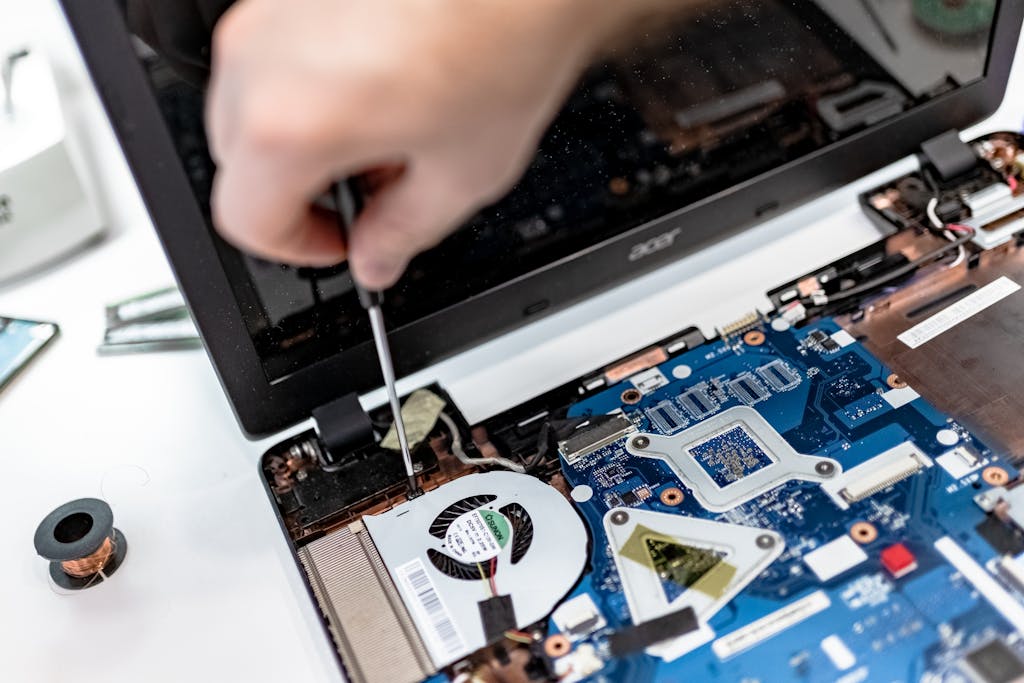
Basic Troubleshooting Tips for Common Technology Issues in the Classroom
With the integration of technology in the classroom comes a myriad of potential issues that…