How to Organize Google Drive: A Simple System for Teachers
The fastest way to organize Google Drive is to pick one folder structure, name files the same way every time, and spend ten minutes cleaning up each month. You don’t need to sort every old file to start. Set up the system below, use it for everything new, and move older files in when you need them.
My digital life is so much more organized than my physical life, but I still forget to name files and wait way too long to organize files into folders. I’m slowly getting better at staying on top of the organization I’ve described here, and it is totally worth it.
A folder structure that works for teachers
Keep the top level short, five or six folders at most. Here’s the structure I recommend:
- 01 Current School Year (2026-27)
- Lessons by unit or month
- Student work
- Sub plans
- 02 Admin: schedules, evaluations, meeting notes, PD certificates
- 03 Resource Library: lessons and activities you reuse every year
- 04 Templates: newsletters, rubrics, slide templates
- 05 Shared With Me shortcuts: shortcuts to team and school folders
- 99 Archive: past school years
Numbers at the start keep folders in the order you want instead of alphabetical order. At the end of the year, move the school year folder into Archive and start a new one.
Name files so you can find them
Use the same pattern every time: date or unit, subject, what it is. For example:
- 2026-11 Thanksgiving Typing Practice
- Unit 3 Coding Exit Ticket
- Grade 2 Parent Newsletter Dec 2026
Writing dates as year-month (2026-11) keeps files in time order when you sort by name.
Color-code and star what you use most
Right-click a folder, choose Organize > Folder color, and pick a color. A simple system: green for this year, blue for your resource library, red for anything that needs attention. Star the folders you open every day so they appear under Starred in the left menu.
Add shortcuts instead of copies
Files other people share with you live in Shared with me, not My Drive. To keep a shared folder in your own structure, right-click it and choose Organize > Add shortcut, then pick a folder. You get one-click access without making copies that go out of date.
Find any file fast with search
The search bar at the top of Drive does more than match names:
- type:pdf or type:spreadsheet finds a file type.
- owner:me shows only files you own.
- Put words in quotes, like “field trip”, to match an exact phrase.
- Use the search chips under the bar to filter by type, people or date modified.
Share safely: Viewer, Commenter, Editor
Right-click a file or folder and choose Share. Pick the right access level:
- Viewer: can look but not change anything. Best for families and most student handouts.
- Commenter: can leave comments and suggestions. Good for peer feedback.
- Editor: can change the file. Only for co-teachers and group projects.
For class templates, share a link that forces a copy, or assign the file in Google Classroom with Make a copy for each student, so no one edits your original.
The 10-minute monthly cleanup
- Check Recent for untitled files, then rename or delete them.
- Move loose files from the top of My Drive into a folder.
- Delete duplicates (“Copy of…”).
- Remove sharing on anything that no longer needs it.
- Check Storage to see what’s taking up space.
Deleted files stay in Trash for 30 days, so you can undo a mistake.
Teach your students the same system
Students need a folder structure too, and teaching it once saves hours of “I can’t find it.” Here are 20 tips for teaching students to organize their Google Drive. My File Management Lesson teaches students to save, name and organize files with no prep.
Have you ever done a digital file scavenger hunt with students? It is really fun, and they find out quickly why naming protocols are so important.
My Resources for Teaching Google Drive Management
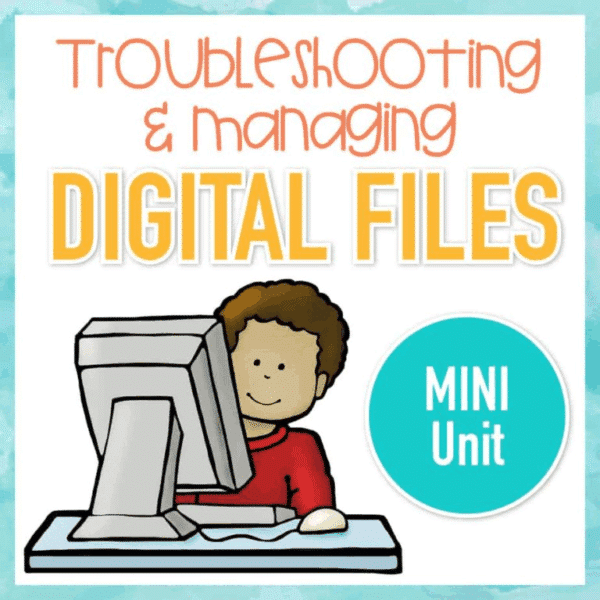
Troubleshooting and Managing Digital Files Mini Unit
Do your students need to learn about basic computer troubleshooting and managing their digital files? This mini 3 lesson unit will teach your middle school students everything they need to be able to start the troubleshooting process when things go wrong.
- The 3 lessons include:
- Basic Troubleshooting Techniques
- Keyboard Shortcuts
- Working with Digital Files
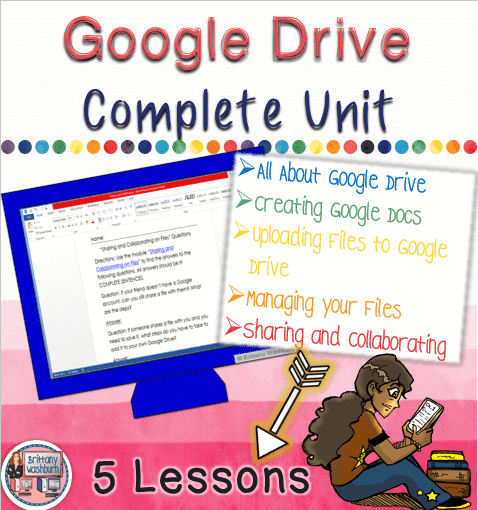
This complete 5 lesson unit will teach your upper elementary or middle school students everything they need to be successful Google Drive users.
Want more? Here are more tips for organizing your digital files, and the Technology Toolbox for Teachers has step-by-step tutorials for Google Drive and 120+ other classroom tech tools.
FAQ
What is the best way to organize Google Drive for teachers?
Use a short, numbered set of top-level folders (current year, admin, resource library, templates, archive), name files the same way every time, and archive the year’s folder each summer.
How do I organize files that were shared with me?
Add a shortcut to them in your own folders with Organize > Add shortcut. The file stays in the owner’s Drive, so it’s always the latest version.
Does moving a file in Google Drive change who can see it?
It can. Moving a file into a shared folder gives everyone with access to that folder access to the file, so check sharing after you move things.