Home » Shopping » Computer Software & Operating Systems Strategies Posters
✅ Shop with Confidence
🔒 Secure Checkout – Your payment is safe and protected.
⭐ Quality Guaranteed – Store credit refunds if something isn’t right.
🎉 Earn Rewards – Get points for every dollar spent & redeem as store credit!
👉 Add to Cart and start using this resource today
Computer Software & Operating Systems Strategies Posters
$4.00
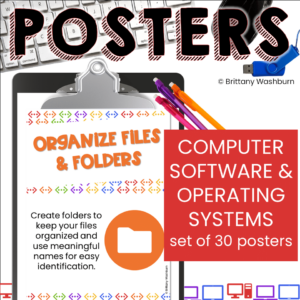
Teach and review computer software and operating systems tips and strategies with this set of 30 posters that can be used as a bulletin board or display. Stylish yet academic posters, with both color and black and white options. Just print and set up!
Teach and review computer software and operating systems tips and strategies with this set of 30 posters that can be used as a bulletin board or display. Stylish yet academic posters, with both color and black and white options. Just print and set up!
What is included?
1 PDF
30 color posters
30 black and white posters
Poster content:
1. Understand the desktop: Learn about the desktop as the main screen of the computer where you can find icons, shortcuts, and the taskbar.
2. Organize files and folders: Create folders to keep your files organized and use meaningful names for easy identification.
3. Practice file management: Learn how to create, save, open, and close files in different software programs.
4. Master copy and paste: Use the copy (Ctrl+C) and paste (Ctrl+V) shortcuts to duplicate and move text, images, and files.
5. Use the search function: Utilize the search function within the operating system to quickly find files, programs, or settings.
6. Customize settings: Explore the settings options in software programs and operating systems to personalize your experience.
7. Resize windows: Learn how to resize windows to view multiple programs or documents side by side.
8. Maximize and minimize windows: Understand how to maximize (enlarge) or minimize (reduce) windows to make the most of the screen space.
9. Use scroll bars: Navigate through documents or web pages using scroll bars or touchpad gestures.
10. Master keyboard shortcuts: Learn common keyboard shortcuts (e.g., Ctrl+C, Ctrl+V, Ctrl+Z) to work more efficiently.
11. Explore software menus: Familiarize yourself with the menus within software programs to access various features and options.
12. Use the undo function: Take advantage of the undo (Ctrl+Z) function to revert changes and mistakes in software programs.
13. Save your work frequently: Develop the habit of saving your work regularly to avoid losing progress in case of unexpected events.
14. Use the Help feature: Utilize the built-in Help feature in software programs to find answers to your questions or troubleshoot issues.
15. Install and uninstall software: Learn how to install new software programs and safely uninstall programs you no longer need.
16. Keep software up to date: Understand the importance of updating software programs to benefit from bug fixes, new features, and security patches.
17. Use spell-check: Enable and use the spell-check feature in word processors and text editors to improve writing accuracy.
18. Customize desktop background: Personalize your computer desktop by changing the background image or wallpaper.
19. Use a web browser: Learn to navigate the internet using a web browser, including opening tabs, bookmarking pages, and clearing browsing history.
20. Bookmark important websites: Save frequently visited websites as bookmarks for quick access in the future.
21. Understand the address bar: Learn to enter website URLs in the address bar and use search engines to find information online.
22. Stay safe online: Practice internet safety by avoiding clicking on suspicious links, sharing personal information, or interacting with strangers.
23. Use software tutorials: Take advantage of software tutorials or guided tours to familiarize yourself with new programs and features.
24. Explore accessibility options: Understand the accessibility options in software programs and operating systems to customize settings for individuals with different needs.
25. Use print options: Learn how to use print options to print documents, adjust settings, and select specific pages.
26. Customize notification settings: Manage and customize notifications from software programs and operating systems to minimize distractions.
27. Use software updates wisely: Be mindful of automatic software updates during critical work periods to prevent disruptions.
28. Use file compression: Learn how to compress files or folders to save storage space and send large files more easily.
29. Explore keyboard and mouse settings: Customize keyboard and mouse settings to suit your preferences, such as adjusting pointer speed or configuring special functions.
30. Practice good digital hygiene: Keep your computer programs up to date and regularly delete unused files.
Why you need this in your life:
With all of the current style trends out there, why not go with a colorful classic that is sure to be in style for years? It will save you time and money down the road when you don’t have to redecorate your classroom just because a color or trend went out of style. Print and laminate once and you’re good to go!
This bulletin board is both academic and decorative. Best of both worlds!
You didn’t become a tech teacher to spend your weekends building lessons from scratch. I’m Brittany, a technology curriculum specialist with 1,000+ ISTE-aligned resources designed specifically for K–8 computer lab teachers.
My ready-made digital and printable resources cover everything from digital citizenship and coding fundamentals to multimedia creation and computer essentials, so your planning is handled and your students stay engaged.
Every resource is built to align with ISTE Standards, save you time, and actually work in a computer lab setting, because I’ve taught in one myself.
Browse my bestsellers, or explore by grade level or topic to find exactly what you need.
Notifications
Computer Software & Operating Systems Strategies Posters




Reviews
There are no reviews yet.