Edpuzzle

Edpuzzle is an interactive application for the students. This application allows the student to present themselves effectively in front of the class or during a presentation. Edpuzzle is becoming more and more popular in the schools of the United States, and the number of active users for this application is in continuous growth. The application also allows you to make audio notes and reminder questions for yourself, so that, when you are done with the video you can recall the missed-out points. You can make any video a lesson for your students.

Here is how Edpuzzle works:
- Download and install the edpuzzle application on your smart device.
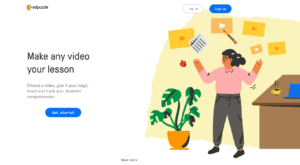
2. Once you have installed the application now open it by clicking the icon of edpuzzle on your main menu.
3. Create a teacher’s account on edpuzzle by using your credentials.
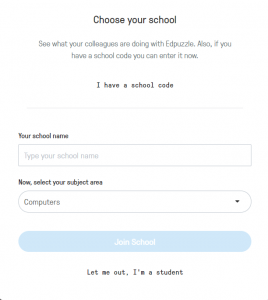
4. Once you have created an account login to your account and add a class. You can also add multiple classes on this platform.
5. Now invite your students to join in the class. You can invite them by sending a specially generated code for your class or you can send them a URL link to the class.
6. Once the students have joined in the class, you can add up activities in the class by clicking on ‘my content’ in the overhead bar on the screen.
7. Here will be a list of the content you have already created or want to create.
8. Click on the create button to create a new activity.

9. You can create a new video or if you already have recorded a tutorial video for the class you can select upload video for that.
10. When you will click the create video button you will be provided with a lot of options from the public resources to add up into your class. The resource can be from YouTube, Ted talks or any available platform in the application. There are dozens of platforms from which a video can be selected.
11. You can also see the lessons that are added by other educators and that can be used in your class as well, which can be a huge time saver.

12. Once you have selected a video, click on use it and you will enter in the lesson editor of the application.
13. You will have four options in your selected video. You can crop the video, add a voice note, add a recording or add a quiz.
14. Once you have done your desired task, now finish the lesson. You can either save this lesson or assign it to the created class. You can allow them to skip the assignment along with skipping you can also create a due date for the class to complete the assignment.
15. You can always check the progress of your students in this application.

Alignment with the iTECH Model
- Inspire: Introduce Edpuzzle by showing how it turns a standard video into an engaging, interactive lesson. Highlight the benefits of integrating multimedia content with assessment to enhance student engagement and understanding.
- Try: Start with a simple Edpuzzle video that includes basic quizzes or voice notes related to a current topic of study. Guide students through watching the video and responding to the embedded questions.
- Expand: Encourage students to explore more complex Edpuzzle lessons with varied types of embedded content, such as open-ended questions and reflective prompts. Teach students how to use Edpuzzle for research and exploration, and how to embed their findings into a video presentation.
- Create: Assign a project where students use Edpuzzle to create their own video lesson. This could involve them selecting a video and adding their own questions, audio notes, and commentary. Encourage creativity and critical thinking as students design their interactive video lessons.
- Huddle: Organize a classroom viewing of student-created Edpuzzle videos, allowing peers to answer each other’s embedded questions. Discuss the process of creating the video lessons, focusing on the learning objectives and effectiveness of the interactive elements.
Here is an idea of how you can use it with your elementary students in a fun way:
Assign Quizzes
After making the students familiar with the application, create a new lesson. In that lesson add voice notes of what is happening and what you expect from the students. Once you have given them the instructions now add quizzes on different time intervals. This will help the students in building up their knowledge about the subject.
Tips for Effective Implementation
- Diverse Content Integration: Use Edpuzzle with a variety of video content, from documentary clips to educational animations, to cater to different learning styles.
- Encourage Reflective Learning: Include reflective questions in Edpuzzle videos that encourage students to think critically about the content.
- Regular Feedback: Utilize the responses and quiz results from Edpuzzle to provide regular feedback and adjust teaching strategies accordingly.
Role of Educators
Educators can facilitate the use of Edpuzzle by guiding students through the technical aspects of creating and interacting with video lessons. Provide support in video selection and question formulation to ensure that the content is educationally relevant and engaging.
Edpuzzle offers a dynamic and interactive approach to video-based learning, enabling educators to create engaging multimedia lessons that incorporate assessment and feedback. By integrating Edpuzzle into the iTECH Model, educators can enhance the learning experience, making video content more interactive and informative. This application aids in knowledge acquisition and develops students’ digital literacy and critical thinking skills.
Click here for a presentation you can use with your staff. It is completely editable so feel free to make any changes you need.