Book Creator

Book Creator is an easy to use tool that allows users to create beautiful eBooks. Users can make their eBooks interesting by adding text, choosing right images, and picking background colors of their choice. You can include as many pages as you want in your eBook. Apart from this, book creator also allows its users to add images by using the camera of your device. You will also have the option to change text attributes, reposition images, and change the size of images as per your requirements.
Finished eBooks can be opened by using Google Play books, Dropbox, Evernote, iBooks and many other apps. You will also be able to share your creations with friends and family through email or by saving your eBook on iTunes. Book Creator also won The Best Educational App award in 2015 by BETT Awards.

Here is how Book creator works:
- First, open the Book Creator app on your iPad.
- On the top left corner, you will see a “New Book” button. Click on it.


3. The next step is to choose the orientation of your book. There are three options available; portrait, square and landscape. Make sure to pick the same options for all students if you want their pages to combine into a single book.

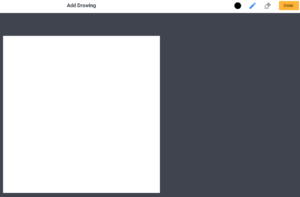
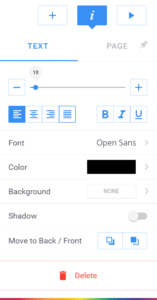
4. For editing the book, click the + sign on the top right corner of your iPad screen. Once you click on this sign, you will see multiple options by which you can edit your book.

To add new pages to your book, tap the plus sign.
You can add all of your pages at once or add them as you go.

To add a picture from your mobile device, click on “Photos” under the + sign.
To take a photo with your camera and then adding it to the book, choose “Camera” under the + sign.

You can also add recording to your book. To do this, click on “Add sound” and then record your voice or choose any other recording from your phone.

5. Once you are done editing your book, the next step is to save it. To do this, click on “My books” and your book will be saved automatically.

Alignment with the iTECH Model
- Inspire: Showcase examples of eBooks created using Book Creator to illustrate the potential of this tool in transforming ideas into professional-looking digital books. Discuss the importance of digital storytelling and the various ways it can be applied in educational contexts.
- Try: Guide students through the basics of using Book Creator, including setting up a new book, adding text and images, and choosing design elements. Let students experiment by creating a simple one-page eBook on a topic they choose.
- Expand: Introduce more complex eBook projects, such as creating a “How to” guide or a collaborative eBook on a specific subject. Teach students about layout design, the effective use of visual aids, and how to integrate multimedia elements like videos and recordings.
- Create: Assign a comprehensive project where students develop a complete eBook. This can be an individual project like a “How to” guide or a collaborative effort on a class-wide topic. Encourage students to incorporate diverse content, including text, images, audio, and video, to enhance their eBooks.
- Huddle: Organize a session where students present their eBooks to the class. Facilitate a discussion on the creative process, design choices, and content of their eBooks.
There are several ways through which you can use Book Creator with your elementary students. Some of the best ideas are:
Creating a “How to” eBook
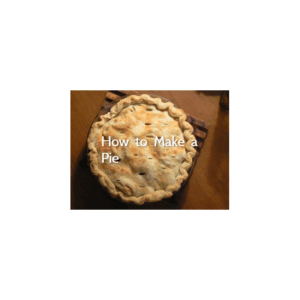
You can ask your students to pick their favorite “How to” book topic and then create a book on that topic. A few examples of “How to” eBooks are “How to tie a shoe”, “How to bake a pie”, “How to create an MS Word document” and so on. Ask your students to explain the whole topic by using different aids such as pictures, recordings, videos etc.
Creating a collaborative eBook
Creating a collaborative eBook is also a fun and interesting idea. You can pick a topic of your choice such as a history topic from the textbook, divide this topic into sub-topics and then create a group of 3-4 students. Each group should be responsible to create a book about their specific topic. Once they are done with it, combine the small books of all groups into a single eBook.
Tips for Effective Implementation
- Structured Flexibility: Provide clear guidelines for eBook projects but allow flexibility for students to express their creativity.
- Enhance Digital Literacy: Use Book Creator projects to teach various aspects of digital literacy, including responsible use of digital tools, copyright considerations, and digital publishing.
- Collaboration and Feedback: Encourage collaboration among students and incorporate peer review to improve their eBooks.
Role of Educators
Educators can facilitate the use of Book Creator by guiding students through the technical aspects of eBook creation and encouraging creative expression. You should provide constructive feedback on both the content and design of their eBooks.
Book Creator is an effective tool for fostering creativity, digital literacy, and a love for storytelling in students. By integrating Book Creator with the iTECH Model, you can provide students with a platform to express their ideas, collaborate on projects, and gain valuable skills in digital content creation. Whether for individual expression or collaborative class projects, Book Creator can significantly enhance the learning experience in the digital age.
Click here for a presentation you can use with your staff. It is completely editable so feel free to make any changes you need.