Word Clouds

Word Clouds are a great tool to help organize anyone’s thoughts and prioritize the most important words in a paragraph. Word clouds are great for motivational affirmations, rules, and projects.

The Word Cloud website is great to create posters for your classroom or for a motivational visual in your students’ notebooks.


- Go to the Word Clouds website.
- Click on the “word list.”

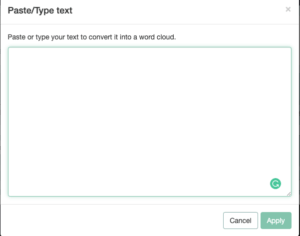
3. In the upper right-hand corner click on Paste/Type text to add individual words or copied text.
4. Click apply to see the word cloud.
5. Make adjustments to the shape, colors, format, font, etc.
6. Export or Print out the visual.


Alignment with the iTECH Model
- Inspire: Showcase various examples of Word Clouds used in different contexts, such as literature analysis, rule creation, or motivational posters. Discuss how visual representations of words can reinforce learning and create a positive classroom environment.
- Try: Introduce students to a Word Cloud website or tool, guiding them through creating a simple Word Cloud using a list of words related to a recent lesson or topic. Allow students to experiment with different layouts, colors, and fonts.
- Expand: Encourage students to use Word Clouds for more complex tasks, such as summarizing a chapter of a book, capturing key concepts from a lesson, or brainstorming for a project. Teach them how to manipulate the program to highlight certain words or concepts.
- Create: Assign a project where students use Word Clouds to create a positive affirmation collage or a visual representation of classroom rules. Encourage creativity and personal expression in the design of their Word Clouds.
- Huddle: Have students present and explain their Word Clouds to the class, discussing the choice of words and the visual impact. Use this as an opportunity for class discussion and reflection on the themes or ideas represented in the Word Clouds.

Positive Affirmations
Use as a team-building activity for students. Each student in the class uses one positive word to describe their classmates. At the end of the activity, each student can cut and paste, or type the list into the Word Cloud site to create their own positive affirmation word collage.
Rules
As you form rules with your class, enter them into the word cloud site. Create a collage to post in your classroom. Words with the most instances are typically the largest, so you can manipulate the program to ensure important words stand out.
Tips for Effective Implementation
- Guided Exploration: Initially, guide students in using the Word Cloud tool, gradually allowing them to explore more features independently.
- Encourage Thoughtful Word Selection: Emphasize the importance of choosing words that genuinely reflect the content or sentiment being expressed.
- Focus on Application: Integrate Word Clouds into various subjects, using them as a tool for summarizing, brainstorming, or reflecting.
Role of Educators
Educators can guide students in how to effectively create and interpret their Word Clouds. Encourage students to think critically about word choice and the visual impact of their Word Clouds.
Word Clouds offer a unique and visually appealing way for students to engage with text and ideas. By integrating Word Clouds with the iTECH Model, educators can enhance students’ understanding of key concepts, foster positive classroom dynamics, and encourage creative expression. Whether for summarizing key ideas, creating affirmations, or visualizing rules, Word Clouds are a versatile tool in the modern classroom.
Click here for a presentation you can use with your staff. It is completely editable so feel free to make any changes you need.